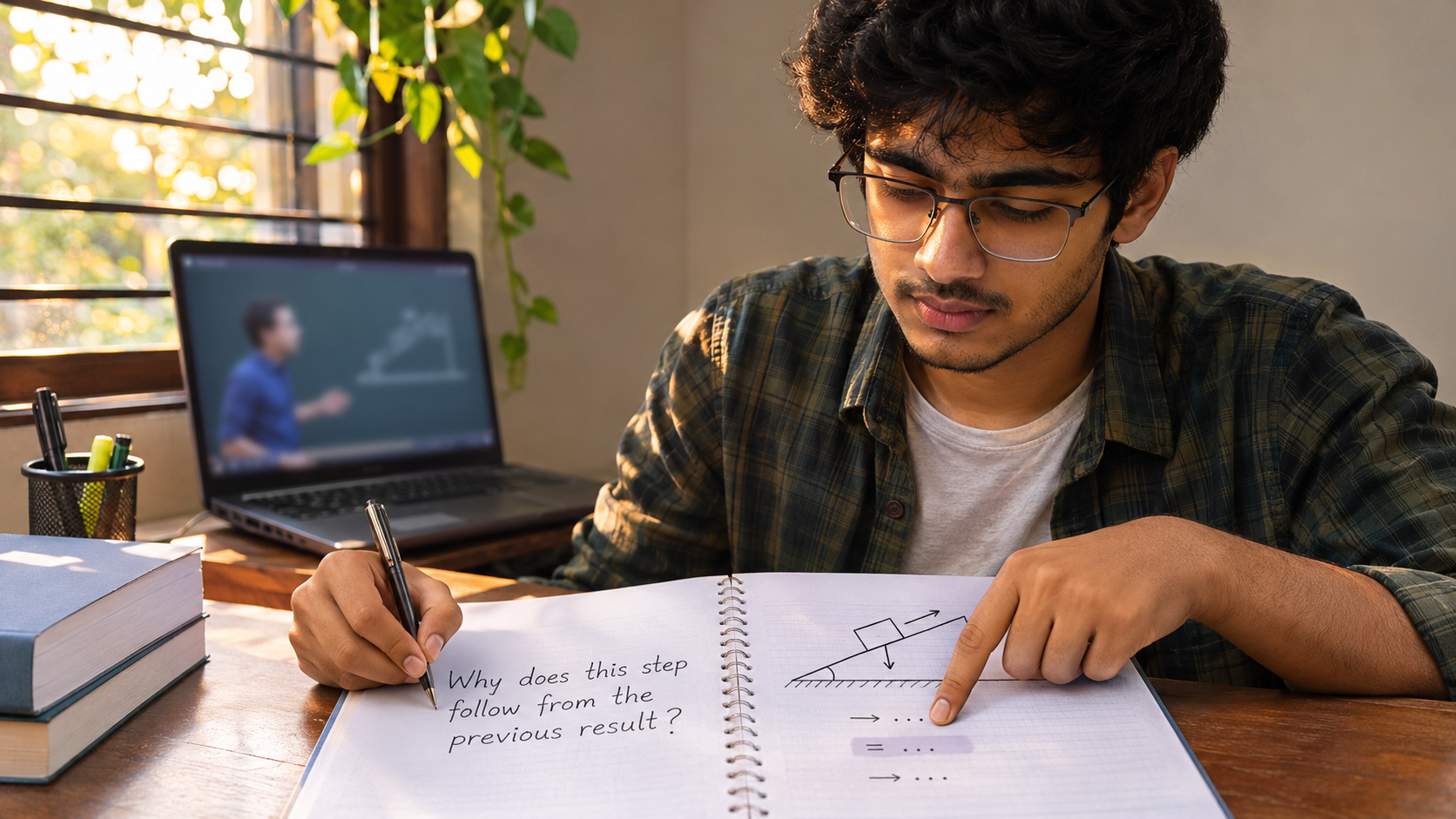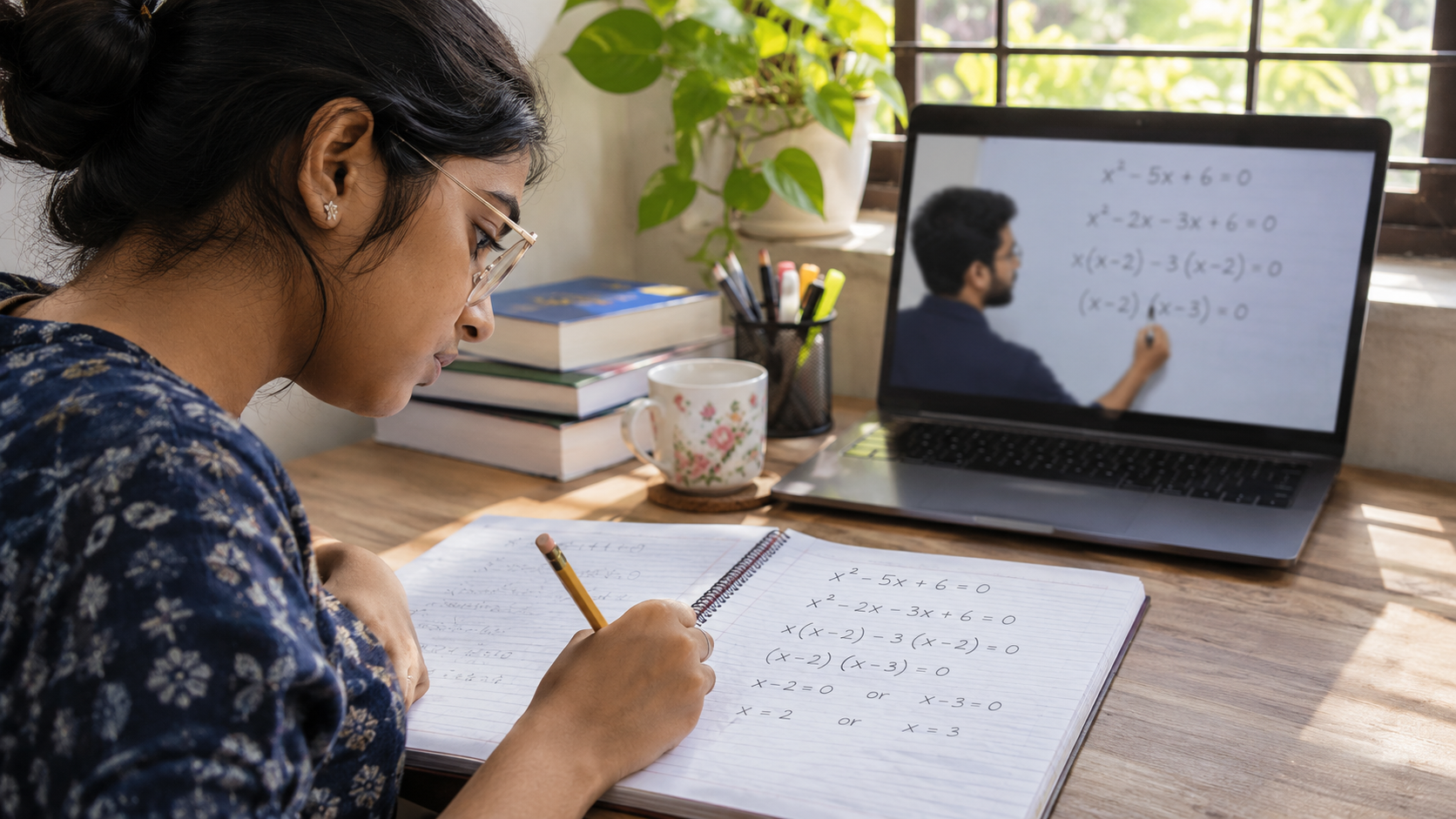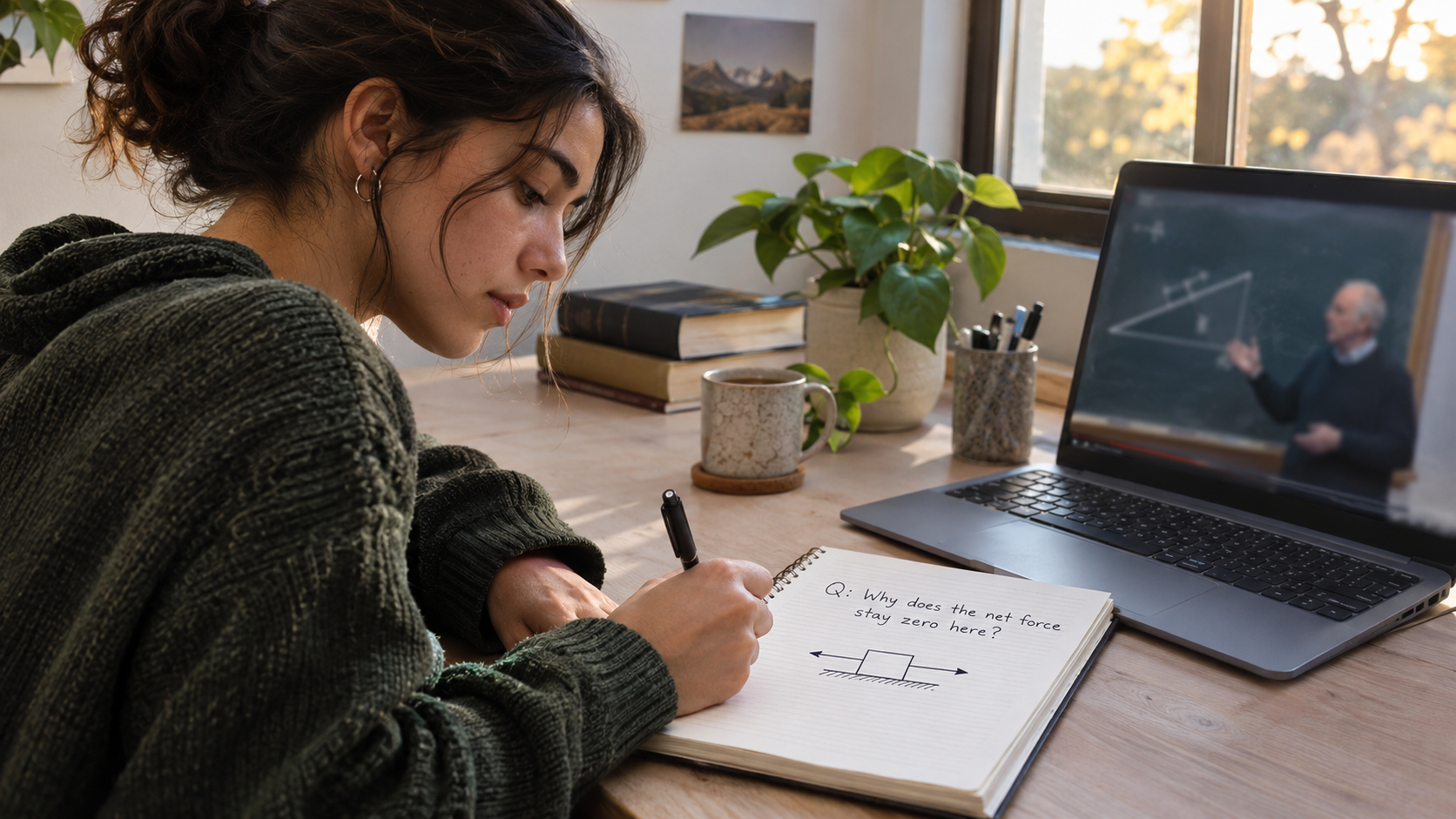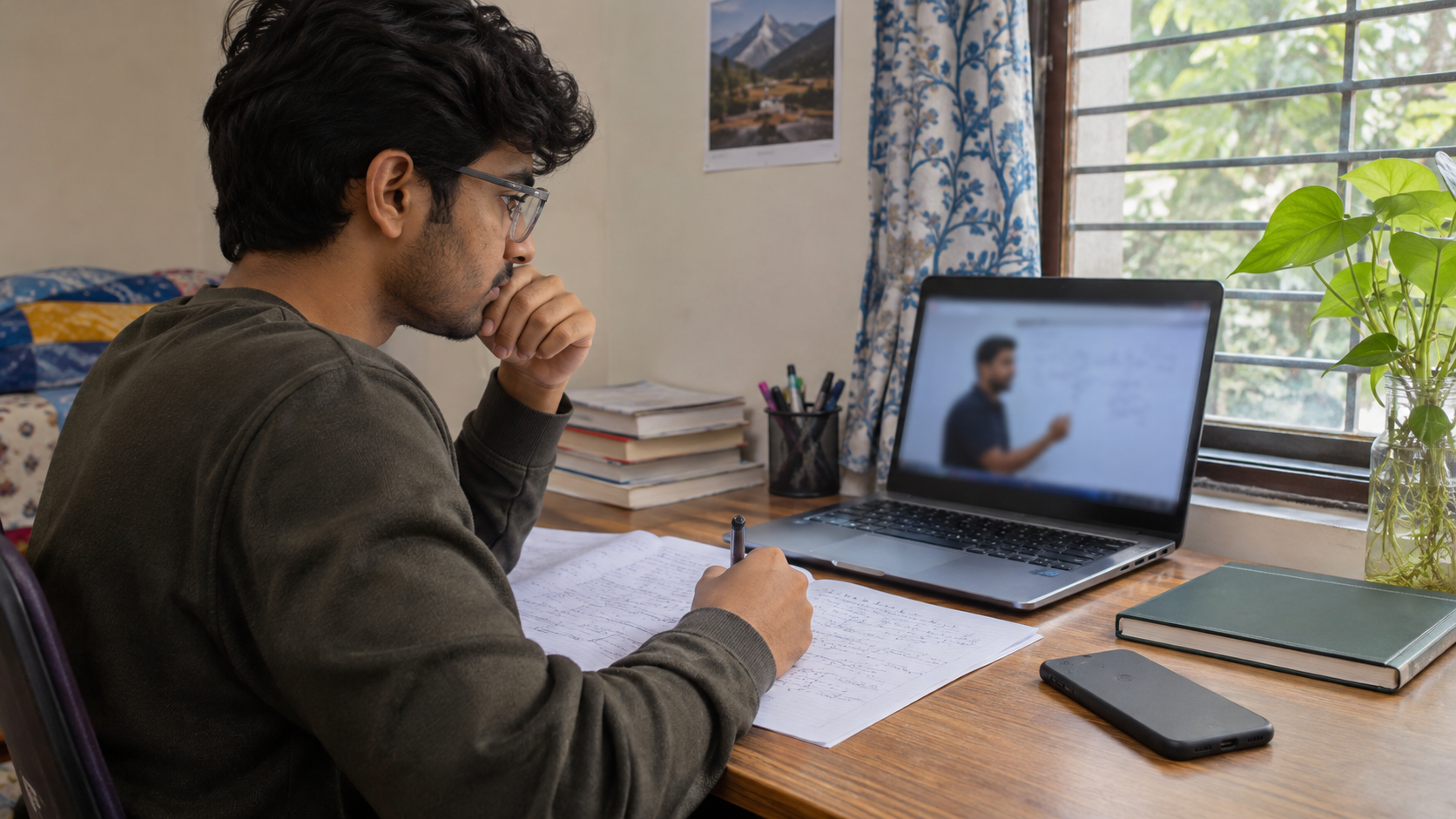
You need a YouTube lecture for tomorrow's exam, so deleting YouTube is not a useful study plan. But opening the app for one explanation can put Shorts a single tap away. The goal is to keep access to the lesson while making the Shorts feed less likely to take over the session.
Start with YouTube's own Shorts Feed limit and set it to zero. Then choose your lesson before you open the app and give the study session an end point. The zero setting is a reminder you can dismiss, so it helps to have a second barrier. On Android, Quietube provides an educational YouTube experience without the Shorts feed and unrelated recommendation clutter, plus Quiet Session, saved videos, notes, and revision tools. Below is a practical setup using both free YouTube controls and a focused study workflow.
Set the YouTube Shorts Feed limit to zero
In the signed-in YouTube mobile app, follow the path in YouTube's current help instructions:
- Tap You, then Settings.
- Open Time management.
- Tap Shorts Feed limit.
- Choose zero from the available limits.
If the option is missing, check that you are signed in and using an up-to-date app. Menu names and availability can vary by device and account, so use YouTube's help page as the current reference.
There is an important limit to understand: YouTube says the setting presents a message when you reach your limit and offers a way to dismiss or ignore it. It is not a parental lock or a guarantee that every Short disappears from every surface. A zero-minute limit creates a pause before scrolling. It works best when you have already decided what to watch instead.
This is also why a generic "block YouTube" instruction can backfire for students who need lectures. The useful decision is more specific: which part of YouTube do you need for learning, and where can you remove the feed around it?
Make the next click a study decision
Before opening any video app, write a one-sentence target: "I will watch the part explaining Newton's second law and solve two related problems." Search for that exact topic and level, choose one lesson, and save it. Our guide to finding good educational YouTube videos shows how to test a lesson for syllabus fit before spending half an hour on it.
A 25-minute session might look like this:
- First 3 minutes: open the selected lecture and locate the worked example.
- Next 15 minutes: watch, pause at the key step, and try it on paper before the instructor continues.
- Last 7 minutes: solve a new problem without the video, note one mistake, and close the player.
The times are a planning example, not a required formula. The point is to give the session a finish line. When the lesson ends, your next action is a practice question, not another video chosen by the feed.
If you open Shorts anyway, do not turn one detour into a verdict on your self-control. Close the feed, return to the saved lesson, and begin at the last question you were working on. A short reset is more useful than deciding the whole study session is lost.
Choose the right limit for your situation
| If your problem is... | Try this | Trade-off |
|---|---|---|
| You open the Shorts feed by habit | YouTube's zero-minute Shorts Feed limit | The reminder can be dismissed |
| You keep reopening the whole YouTube app | An Android Digital Wellbeing app timer or Focus mode during practice blocks | It limits access to lectures in that app too |
| You need YouTube lessons but dislike the surrounding feed | Open a chosen educational video in Quietube and use Quiet Session | You still need to choose a relevant lesson and do the practice |
Android Digital Wellbeing can set an app timer and offers Focus mode. Those are useful for a no-video practice period. They act on the app rather than separating Shorts from long-form lessons, so schedule them around lecture time instead of switching them on while you need the video.
YouTube also offers a take a break reminder. That can help you notice a long viewing session, but it does not replace the zero-minute Shorts limit or a lesson plan. Use the smallest control that addresses your actual problem, then add another only if the habit continues.
A Quietube session that keeps the lesson and removes the feed
If your coursework relies on YouTube, the most durable change is to make educational viewing a separate routine. Here is an Android workflow in Quietube:
- Search for today's learning question. Use Quietube's education-focused search and smart insights to shortlist relevant videos. Check the result against your course material; a recommended lesson still needs to fit your syllabus.
- Save one lesson to Marklist. Add a video note such as "Worked example begins at 06:10; retry problem 4." This gives you a direct return path instead of another open-ended search.
- Start a Quiet Session. Watch the chosen lesson in Quietube's distraction-free environment, where Shorts and unrelated recommendations are kept out of the learning flow.
- Stop at a testable point. Close or pause the lesson and answer a question from memory. Quietube's quiz and AI-generated revision features can help draft a check, but verify answers against the source and your teacher's material.
- Schedule the next review. Use the Scheduler if you need a reminder to retry the difficult question later. Do not fill the rest of the session by browsing for another video.
Try Quietube for your next YouTube study session if you want the educational video, saved note, and revision step together without a Shorts feed in the middle. You can still set YouTube's own zero-minute limit for the times you use its app directly.
If you are helping a student
A parent or teacher can share the exact lecture or relevant timestamp rather than asking a student to "look up the topic on YouTube." Pair the link with a small output: one worked problem, a two-sentence explanation, or a question to bring back to class. That makes it easier to tell whether the video helped.
For younger learners, review the platform's family settings and the school's device rules rather than assuming a dismissible time reminder is a child-safety control. Keep the conversation practical: ask where the student tends to get pulled into Shorts, then adjust that entry point. If the problem happens only after the lecture ends, the most useful change may be to move straight from the saved video to a written task.
Common questions
Does setting the Shorts Feed limit to zero completely block Shorts?
No. YouTube describes a limit message that can be dismissed or ignored. Treat zero as a friction point, not an unbreakable block, and use a focused lesson workflow when you need stronger separation from the feed.
Can I keep YouTube lectures while avoiding Shorts?
Yes. Set the Shorts feed limit, open a specific lecture rather than browsing the Home feed, and use a distraction-free learning app such as Quietube on Android when that fits your routine. Keep the selected video saved so returning to it does not require another feed visit.
Should I block YouTube during exam preparation?
Block or limit it during question practice if you keep reopening the app. Leave a planned window for the exact lesson you need, then switch back to practice. A whole-app timer may be too blunt if video teaching is part of your course.
Shorts are easiest to avoid when the next study action is already decided. Set the limit, save one lesson, and end with a question you can answer on your own. Quietube gives that sequence a focused home when YouTube itself keeps pulling you away.

Full-Stack Web & Mobile App Developer crafting ultra-fast, high-converting digital products.